


TCL Android TV Remote
4.6486.00 Reviews
App Specs
- Version
- 20.0
- Updated On
- License
- Free
- Downloads
- 500,000+
- Developer
- Naba
- Categories
- House & Home
- Platform
- Android
Screenshots
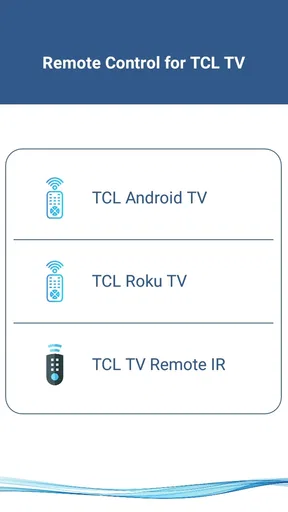
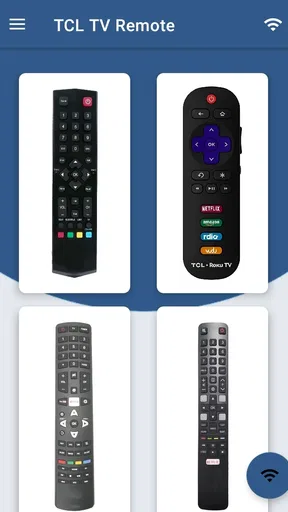
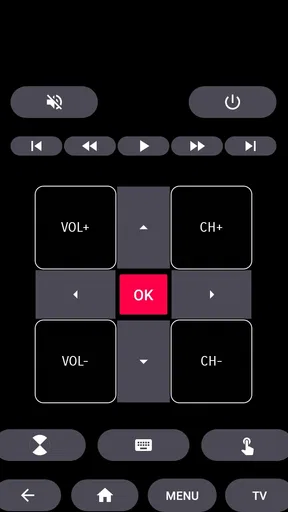
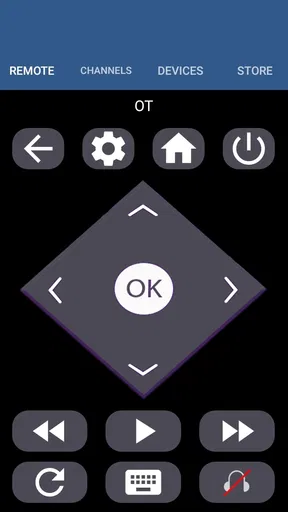
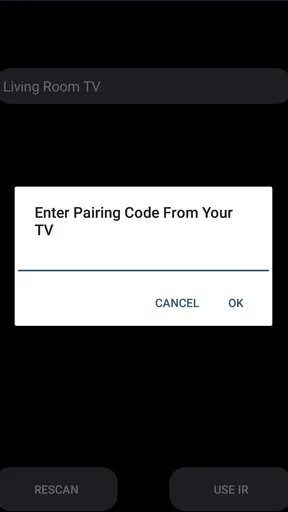
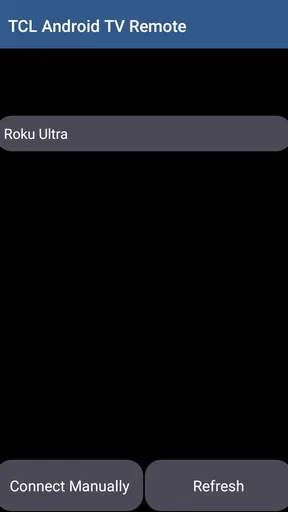
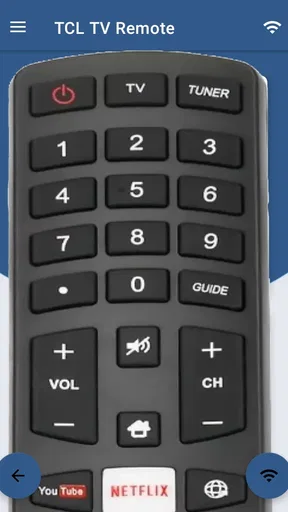
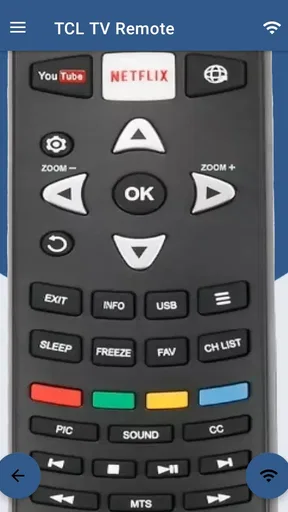
 Analysis by AppCompare
I usually reach for a phone remote when the physical one has slipped between the sofa cushions, the batteries have died, or I want to search without pecking at arrow keys. That is the practical promise of TCL Android TV Remote: it puts TV controls on a device I already keep nearby. I would treat it as a useful backup and a more convenient way to enter text, rather than assume it can replace every physical remote in every home. Whether it suits you depends first on the TV and the connection you can establish.
Before you start: the TV and phone need to meet
The app is made by Naba and sits in the house-and-home space. It is free, rated for Everyone, and has an average rating of 4.6 from around 40,000 ratings, with more than 500,000 installs. Those figures suggest that plenty of people have tried it, but they do not guarantee that it will work with every TCL set or every home network. Its stated minimum Android requirement is version 4.4, and version 20.0 is the current release.
Before relying on the phone, I would check that the television is a TCL Android TV and that both devices can join the same Wi-Fi network. That same-network condition is the first practical gate: if the TV is offline, the phone is on mobile data, or the devices are separated across different networks, the app may not find the set. This is not a universal remote for any television simply because the brand name matches. The Android TV part matters.
For a household, it is worth thinking about who will use the app and when. A phone remote is especially handy for someone who often types searches, shares a TV with others, or wants a quick backup in the room. It is less appealing if you want a dedicated controller that any guest can pick up without installing anything, or if you frequently hand your phone to someone else. In those situations, the physical remote remains easier to share and always has a clear purpose.
An Intuitive Interface
The first thing I noticed when I opened the TCL Android TV Remote app was its sleek and user-friendly interface. Seriously, it’s super intuitive. Everything is laid out in a way that just makes sense. You can easily navigate through the different sections without feeling overwhelmed. I love how the app mirrors the physical remote but with added functionality. It's like the creators genuinely understood our need for simplicity and efficiency.
You’ll find all the usual buttons you need, like volume control, channel selection, and a nifty home button. But the real magic happens with the additional features. More on that in a bit!
Seamless Connectivity
One of my biggest pet peeves with remote apps is the connectivity issues. You know, that annoying lag or the constant need to reconnect? Well, this app spares you from the headache. Connecting to your TCL TV is a breeze. Just ensure both your TV and phone are on the same Wi-Fi network, and you’re good to go!
Worth Reading Before You Choose

EA SPORTS FC Mobile 26 Is a Bigger Football Game, but It Takes Time

Flipboard Shows What News Apps Must Do Beyond the Feed

Switching to Android Auto Means Rethinking Your Driving Routine

Google Calendar Makes a Crowded Week Easier to Manage

Ludo King Makes the Most of the Minutes Between Plans

Baby Panda World Brings Quick Play to Modern Phones, but Its Game Library Feels Busy
Once connected, the app maintains a stable connection, allowing you to control your TV without any hitches. It’s like having an invisible tether between your phone and TV, ensuring you stay in control at all times.
From a button press to finding a programme
In day-to-day use, I would start with the home button, move through the TV’s menus, and use the phone keyboard when a search box or password field appears. That is where a phone can feel like a meaningful upgrade over the standard remote: entering a long title or network password with a touchscreen keyboard is usually less fiddly than moving one character at a time with directional buttons. The benefit is not that every part of watching TV changes; it is that a few small tasks take less patience.
A realistic example is settling in after work, opening a streaming app on the television, then searching for a particular film. With a physical remote, I might tolerate the arrow-key entry or abandon the exact search. With the app’s keyboard function, I can type on the phone and then put it down once playback begins. The handoff is simple: the phone helps with navigation and text, while the TV remains where the actual viewing happens.
There is a useful distinction between having a keyboard available and having a keyboard that works in every screen. I would use it when the TV presents a text field, but I would not plan on it bypassing a service’s own sign-in steps or changing how that service handles search. The app is a controller for the television, not a replacement for the apps and menus on the TV itself.
Voice Command Feature
Now, this is where things get exciting! The voice command feature is a game-changer. Imagine sitting back on your couch, too lazy to type, and simply telling your TV what to do. “Hey TCL, play some action movies,” and voilà! It’s like having your personal butler for your entertainment needs. This feature is not only convenient but also adds a futuristic touch to your whole viewing experience.
When voice is useful—and when it is not
Voice control makes the most sense when I know what I want but do not want to type it. It can be a comfortable option from the sofa, particularly for a short search or a straightforward instruction. I would still keep the keyboard and navigation controls in mind as alternatives: voice can be awkward when the room is noisy, when I need to enter a password, or when a title is unusual and speech recognition might not interpret it as intended. Switching between voice and typing is a practical way to avoid turning one input method into a requirement.
There is also a small privacy and convenience trade-off in using a phone as the input device. I have to pick it up, unlock it if needed, and keep it within reach. A physical remote is ready without that extra step, and its buttons can be found by touch in a dark room. I see the phone’s voice and keyboard tools as situational advantages, not proof that the traditional remote is obsolete.
Customizable Settings
Customization is key, and this app nails it. You can adjust the app settings to suit your preferences. Whether it’s changing the button layout or tweaking the sensitivity, the app lets you personalize your remote experience. This flexibility ensures that the app works exactly how you want it to.
Choosing the right control for the moment
For quick volume or navigation changes, a familiar physical remote may still be faster, especially if it is already in hand. A phone earns its place when I need the keyboard, prefer touch navigation, or want a backup after the original remote goes missing. That makes the two options complementary rather than direct substitutes. If the household has several people, keeping the physical remote as the shared default and using the phone for searches can avoid the awkwardness of needing one person’s handset every time someone wants to pause.
The settings described in the app give users room to tailor their control experience, but I would make changes gradually. If a layout or sensitivity adjustment feels less natural, returning to the familiar arrangement may be easier than retraining muscle memory. Personalization is useful when it removes friction; it is not automatically better just because there are options to change.
Additional Features
Beyond the basics, the app offers some cool extras. For instance, the touchpad feature allows you to navigate your TV like a pro. It’s smooth and responsive, making scrolling through menus a breeze. Plus, the app includes a keyboard function, which is a huge relief when you’re trying to enter passwords or search for content. No more fumbling around with arrow keys!
Another neat addition is the ability to access your TV’s settings directly from the app. Adjust the picture quality, change the sound settings, all without needing the physical remote. It’s like having full control right at your fingertips.
Useful handoffs and a sensible fallback
The touchpad is a different way to move around menus, not necessarily the best choice for every task. I would use it when scrolling through a screen feels more natural than repeated directional presses, then return to buttons for precise selections if that feels easier. The keyboard has a similarly focused role: it can reduce typing effort, but it does not remove the need to navigate the TV’s interface or choose the right result.
Access to picture and sound settings is handy when a change is needed mid-viewing. For example, if dialogue is hard to hear, I can make a sound adjustment from the phone rather than stop to search for the remote. The trade-off is that settings still belong to the television; the app makes them easier to reach but does not decide which picture or audio choice is right for a particular room.
I would keep the physical remote somewhere predictable even if the app becomes my usual choice for text entry. That backup matters if the phone battery is low, the network connection drops, or another person wants to control the TV without using my device. Thinking of the app as one link in the control chain makes the setup more reliable than expecting a single tool to cover every circumstance.
Compatibility and Updates
The app is designed to work seamlessly with all TCL Android TVs. Plus, the developers are pretty active when it comes to updates. They’re constantly working on improvements and new features, ensuring the app remains top-notch. It’s nice to know that they’re listening to user feedback and making the app even better over time.
Another great thing is the app’s compatibility with both Android and iOS devices. So, whether you’re team Android or team iPhone, the app has got you covered. It’s all about inclusivity!
Where the workflow can break
The most important limitation is also the easiest to overlook: phone control depends on the TV being discoverable over the home network. If the television and phone are not on the same Wi-Fi network, I would first check that connection rather than repeatedly tapping controls or assuming the app itself is broken. A router change, a guest network, or a TV that has lost its connection can interrupt the handoff between phone and television. Reconnecting the devices to the same network is the sensible first troubleshooting step.
Compatibility deserves the same practical caution. The app is aimed at TCL Android TVs, so I would not install it expecting it to control a TCL set running a different TV platform, or another brand’s television. The name can sound broader than the intended use. If you own a non-Android TCL model, a different remote app made for that set or the manufacturer’s own control option may be the better route.
There is also a difference between a phone remote and a universal remote. A universal controller is useful when one device needs to operate equipment from several brands; this app’s appeal is narrower and more specific to controlling a compatible TCL Android TV. If your goal is to manage a TV, sound system, and other home equipment together, the phone app may not replace the broader control setup you already use.
Who will get the most from it
I would recommend trying it if you own a compatible TCL Android TV, often search for programmes, or want a fallback for the familiar moment when the remote disappears. It is especially practical for people who already keep their phone beside them while watching and do not mind connecting over Wi-Fi. Since the app is free, testing whether it fits your setup is a low-commitment way to decide if the keyboard, touchpad, and other controls are useful in your routine.
I would skip it as a primary remote if you need an infrared controller, expect it to work across different TV platforms, or want every household member to have a dedicated control without installing an app. It is also not the right fix for a TV that is offline or for a network arrangement that keeps the phone and television apart. In those cases, the included physical remote—or a compatible alternative designed for the specific TV—will be more dependable.
One practical way to judge it is to try the whole workflow once, rather than only opening the app and pressing volume. Connect the phone and TV to the same Wi-Fi, use the home control to reach a text field, try searching with the keyboard, and then adjust a setting you normally change on the television. That quick routine reveals whether the connection is stable in your home and whether the phone’s controls actually save effort for the tasks you do most.
For a modest remote utility, its appeal is straightforward: it turns a phone into a convenient companion for a TCL Android TV, with useful input options alongside ordinary controls. I like it most as a backup and search aid, while keeping expectations tied to network access and compatible hardware. The app has been available since May 1, 2022, and the free download has an Everyone content rating. My recommendation is simple: if your TV fits the intended setup, give it a try, but keep the physical remote nearby for the moments when a phone is not the easiest tool.
In conclusion, the TCL Android TV Remote app is a fantastic tool that simplifies your TV viewing experience. From its intuitive interface to the plethora of features, it’s clear that a lot of thought went into its development. If you’re looking for a reliable and convenient way to control your TCL TV, this app is definitely worth checking out. It’s like turning your phone into the ultimate remote control, and who wouldn’t want that?
Pros
- Easy to navigate interface.
- Quick response time.
- Compatibility with multiple models.
- Customizable settings.
- Voice control feature.
Cons
- Occasional connectivity issues.
- Ads can be intrusive.
- Limited offline functionality.
- App size is relatively large.
- Requires constant updates.
FAQs for TCL Android TV Remote
What features does the TCL Android TV Remote app offer?
The TCL Android TV Remote app provides a seamless way to control your TCL Android TV using your smartphone. It includes features like voice search, a touchpad for navigation, a keyboard for text input, and quick access to your favorite apps. This app enhances your TV experience by offering a more intuitive and flexible control method.
Is the TCL Android TV Remote app compatible with all TCL TV models?
The TCL Android TV Remote app is specifically designed for TCL TVs that run on the Android TV platform. Before downloading, ensure your TV model is compatible by checking the manufacturer's specifications or the app's compatibility list in the app store. It may not work with non-Android TCL TVs.
How do I set up the TCL Android TV Remote app on my device?
To set up the TCL Android TV Remote app, first download it from the Google Play Store or Apple App Store. Ensure your smartphone and TV are connected to the same Wi-Fi network. Open the app, and it should automatically detect your TV. Follow the on-screen instructions to complete the pairing process.
Are there any costs associated with using the TCL Android TV Remote app?
The TCL Android TV Remote app is typically free to download and use. However, it's important to check for any in-app purchases or premium features that might incur additional costs. Be sure to review the app's description and user reviews in the app store for any possible charges.
What should I do if the TCL Android TV Remote app isn't working correctly?
If you experience issues with the TCL Android TV Remote app, first check that your phone and TV are on the same Wi-Fi network. Try restarting both devices and the app. If problems persist, consider reinstalling the app or consulting the customer support section for troubleshooting tips and updates.


